
Connect ChatGPT to Google Search Console
Bring your Google Search Console data into ChatGPT. Connect Searchata once, then ask questions in the tools you already use.
Read-only access · Browser authorization · No API keys to paste
Install Searchata in ChatGPT
Connect your data first
Sign in to Searchata and connect Google Search Console during setup. Use a Google account with access to the properties you want to analyze.
Open Data sources →- In ChatGPT, open Settings → Security and Login. Turn on Developer Mode.
- Open ChatGPT Plugins and select + to create a plugin.
- Enter Searchata MCP as the name,
https://searchata.com/mcpas the connection, and OAuth as authentication. - Review the custom MCP server notice, select its checkbox, and select Create.
- Select Sign in with Searchata MCP. In Searchata, select Authorize MCP Access.
- Return to ChatGPT and confirm that Searchata MCP is installed. Select it for your conversation.
See the ChatGPT plugin settings
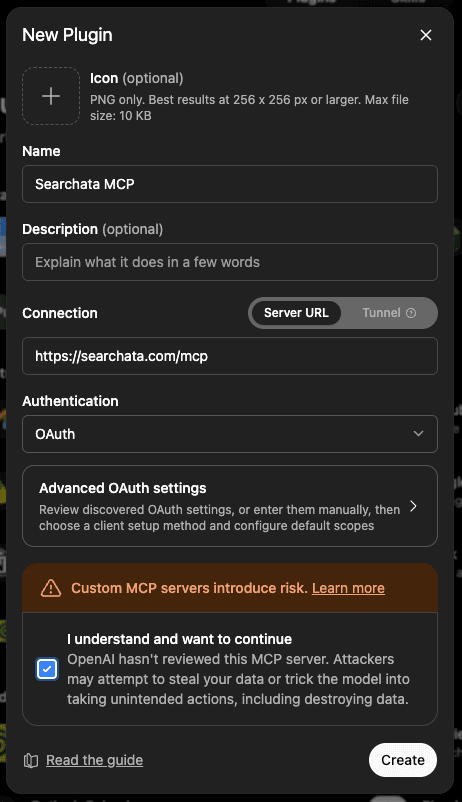
You need access to custom plugins and Developer Mode. Your workspace administrator may control these settings.
After connecting, finish your trial or subscription setup before asking for data. Already subscribed? You can continue with your existing plan.
Try it in ChatGPT
Name your site or property, then send this prompt.
Compare my last 28 days with the previous 28 days. Which pages lost the most Google clicks?
Read-only access. Searchata cannot change your properties, submit sitemaps, or request indexing.
Your next insight starts here.
Connect Google Search Console and ask your first question.
Use another assistant
Need a hand? Read the troubleshooting guide or contact support.